> ## Documentation Index
> Fetch the complete documentation index at: https://guide.exikit.com/llms.txt
> Use this file to discover all available pages before exploring further.
# FAQ
> Answers to common questions.
## General
Depending on what you want to see, there are different ways to do it.
* **Forms and orders**\
There are dedicated preview pages available from the sidebar. These will be the same pages that exhibitors see, meaning that you'll get an interactive, up-to-date view of how things look. The only difference is that you won't be able to submit the form or order through the preview.
* **Emails**\
You can view all sent automatic emails related to your event by going to [Email logs](https://app.exikit.com/~/~/email-logs) or viewing the "Email logs" tab in an exhibitor's profile.
For the full exhibitor experience, you can use the demo version of ExiKit. Learn more [here](/demo).
This happens in quite a few places throughout ExiKit. For example:
* **Order confirmation**\
This includes a summary of what they have ordered.
* **Form submission confirmation**\
A confirmation when they submit a form for your event.
* **Status update emails**\
This is sent when you accept, reject or mark an exhibitor as pending for your event. If you don't want this to be sent, you can choose "No email" when updating their status.
* **New member sign up**\
Notification when a new member joins their organization.
You can view all automatic emails related to your event by going to [Email logs](https://app.exikit.com/~/~/email-logs) or viewing the **Email logs** tab in an exhibitor's profile.
*We're working on a feature to automatically send reminders to exhibitors about submitting missing forms or placing their order, but this is not available yet.*
From the exhibitors list, press **"Export all"** to get a list of all emails and phone numbers. You will get a CSV-file, which you can [open in Google Sheets or Excel](/open-csv-file).
Once you open the file, you have multiple options for sending emails, such as:
* **Mail merge**\
If you use Gmail, you can send personalized emails all at once by using their [mail merge feature](https://support.google.com/mail/answer/12921167). If you don't use Gmail, you can search for "mail merge" to find multiple other tools that do this. This is generally the recommended way.
* **BCC**\
If you enter all email addresses in the "bcc" field of your email, everyone receives the email and you don't risk the recipients seeing each other's email addresses.\
\
However, all replies will land in the same email thread, which can be messy if you have a lot of recipients. To prevent this, let the exhibitors know what email they should reply to, and they will often create new threads instead of replying in the original.
Never paste all exhibitors' email addresses into the "to" or "cc" fields in your email, as this will make the full list of emails visible to all recipients.
## Account & access
Let support know by forwarding the email that you received to [support@exikit.com](mailto:support@exikit.com), and we'll help them out.
Check that you entered the email address correctly and wait a minute or two and it will usually arrive. If not, remember to check your spam folder.
If you still don't see any confirmation email, reach out to [support@exikit.com](mailto:support@exikit.com) and we'll help you out.
You can either **send an invite directly** to their email or **set up an email whitelist** so that anyone from your organization can join without needing to be explicitly invited. Both options are available in organization settings.
Exhibitors can invite their colleagues in the same ways. Setting up a whitelist is recommended, as it's common for company representatives to change between years.
Ask them to invite their colleague to the organization. This way, the new person will get access when they create an ExiKit account. You can also forward their email to [support@exikit.com](mailto:support@exikit.com) and we'll help them out.
You can also add an internal note to the exhibitor's profile to help you keep track of the change.
## Exhibitors
These are the different statuses that potential exhibitors can have for your event, making it easy to keep track of where they are in the process.
* **Pending**\
Registered interest, but are not yet approved or denied. This is the default status for all exhibitors.
* **Approved**\
You decide when to approve exhibitors, but usually it's done once they've signed your exhibitor agreement and passed your internal review. Approved exhibitors are shown in the digital catalogue.
* **Rejected**\
If an exhibitor decides not to participate, they registered by mistake, or you simply are unable to provide them a spot at the fair.
Go to the exhibitor's profile and click the badge with their current status. You can then select a new status and choose whether to send an email notification to the exhibitor about the change.
While we can't provide legal advice, here are a few ways of managing agreements that we commonly see being used by event organizers:
* **E-signing services**\
Services like DocuSign and Scrive allow exhibitors to sign agreements digitally. These services generally allow you to enter email addresses of recipients who should sign the agreement, and they will then receive a link to a page where they can sign the agreement.
* **Forms with an upload field**\
Create an ExiKit form with a link to the agreement to be signed. Below it, add an image upload question, where the exhibitor will upload their agreement once signed.
Once the agreement is signed and the exhibitor has passed your internal review, update the exhibitor's status in ExiKit to **"Approved"**. This makes it easy to keep track of what exhibitors have signed the agreement.
*You can learn more about electronic signatures and their validity in the EU at the [European Commision's website](https://ec.europa.eu/digital-building-blocks/sites/spaces/DIGITAL/pages/467109069/What+is+eSignature).*
Usually, it is recommended to mark them as "Rejected" instead of removing them fully. This keeps their information for future events and allows you to add internal notes about them, for example mentioning why they were rejected.
If you still want an exhibitor removed, reach out to us at [support@exikit.com](mailto:support@exikit.com) and we'll help you out.
Your internal notes are only visible to you and members of your organization. They are never shared with exhibitors.
## Catalogue
You can choose when you want your catalogue to be visible to the public.
1. Go to **Digital catalogue > Shared catalogue**
2. Check/uncheck the box "Publish the catalogue" and save the changes
When published, anyone with the link can view it.
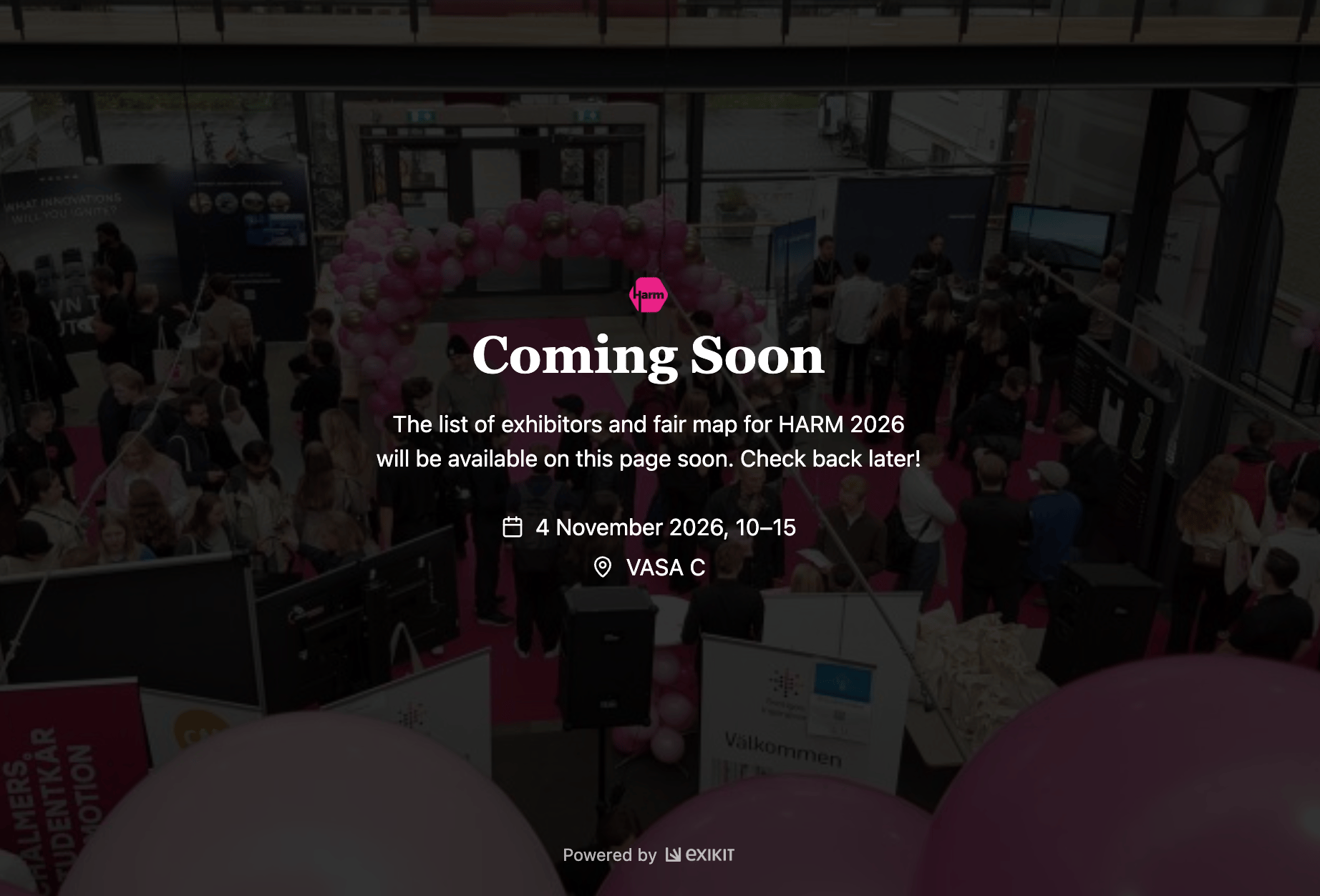
A placeholder page showing the event's name, dates, and location. See the image below for an example of how can look.
You can customize the background image via **Digital catalogue > Settings**. If you want to change the event details, you can do so via the usual event settings.
 By default, the catalogue shows all of the exhibitors who you have approved for the event. If you want to change if a specific exhibitor is shown in the catalogue, you can do so by updating this visibility.
* **Default**\
Shown in the catalogue only if they are approved for the event.
* **Visible**\
Always visible, even if they are not approved for the event.
* **Hidden**\
Never visible, even if they are approved for the event.
Yes! Even if an exhibitor is approved for your event, you can hide them from the catalogue. This can be useful if an exhibitor has a strict policy for how you are allowed to promote their participation in your event.
1. Go to **Digital catalogue > Responses**
2. Select the row with the exhibitor you want to hide
3. Press "Update visibility" in the options above the table
4. Select "Hidden" from the dropdown and save the changes
Go to **Digital catalogue > Navigation** and add your link. It will show up for your visitors at the top right of the catalogue once published.
## Committee handover
Yes! Future committee members are able to look back at all event information from previous years, making it easy to use in their work with organizing the event.
Event-related information about the exhibitors, like registration status, form responses and order details, is automatically available for future years to view while working on their new event.
You can also add internal notes about exhibitors. This is only visible to members of your organization and is a highly recommended tool to use.
If you collect personal information through ExiKit via forms or other features and need to delete it to ensure GDPR compliance, please reach out to [support@exikit.com](mailto:support@exikit.com) and specify what data you would like to have deleted, and we'll help you out.
By default, the catalogue shows all of the exhibitors who you have approved for the event. If you want to change if a specific exhibitor is shown in the catalogue, you can do so by updating this visibility.
* **Default**\
Shown in the catalogue only if they are approved for the event.
* **Visible**\
Always visible, even if they are not approved for the event.
* **Hidden**\
Never visible, even if they are approved for the event.
Yes! Even if an exhibitor is approved for your event, you can hide them from the catalogue. This can be useful if an exhibitor has a strict policy for how you are allowed to promote their participation in your event.
1. Go to **Digital catalogue > Responses**
2. Select the row with the exhibitor you want to hide
3. Press "Update visibility" in the options above the table
4. Select "Hidden" from the dropdown and save the changes
Go to **Digital catalogue > Navigation** and add your link. It will show up for your visitors at the top right of the catalogue once published.
## Committee handover
Yes! Future committee members are able to look back at all event information from previous years, making it easy to use in their work with organizing the event.
Event-related information about the exhibitors, like registration status, form responses and order details, is automatically available for future years to view while working on their new event.
You can also add internal notes about exhibitors. This is only visible to members of your organization and is a highly recommended tool to use.
If you collect personal information through ExiKit via forms or other features and need to delete it to ensure GDPR compliance, please reach out to [support@exikit.com](mailto:support@exikit.com) and specify what data you would like to have deleted, and we'll help you out.